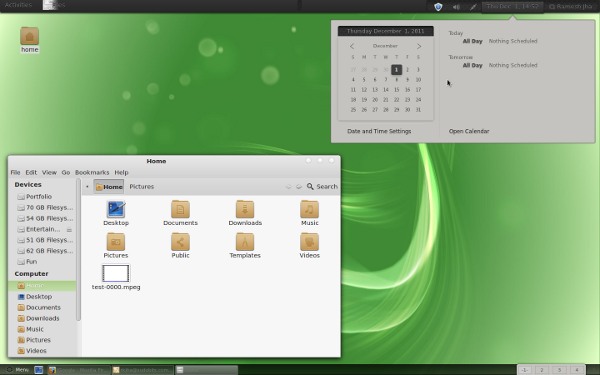


Linux Mint 13 (a.k.a Maya) is out and it’s rocking the GNU/Linux desktop world with a lot of innovative features and cool stuffs. If you haven’t tried it yet – then you must check it out. Anyway, this post is aimed to help beginners who have just installed a fresh copy of Linux Mint 13 – Cinnamon or Mate Edition (most of the things seems to be same but MATE edition is more stable and mature while Cinnamon is cool, new and exciting).
Since Linux Mint is one of the most beginner friendly GNU/Linux distribution so I assume that you don’t have any previous experience with any GNU/Linux distro, on the other hand if you’re familier with Ubuntu or Debian or other GNU/Linux distribution then most of the things would be straight-forward and easy in Linux Mint 13 so you wouldn’t even need this getting started tips (but it might be helpful in some case).
Anyway, if you’ve installed Linux Mint 13 successfully then it’s the time to start using it with its unlimited potential (and of course the fun).
6 things to do after installing Linux mint 13
#1. Update
To update your system, simply open update manager or just execute these two commands in a terminal (hit Ctrl+alt+t) –
sudo apt-get update
sudo apt-get upgrade
Sometimes, you may have to restart your computer to complete the update process.
#2. Install Some necessary programs
After a fresh installation, you may need to install some necessary audio/video codecs or libraries (some proprietary programs, if a good open source equivalent program is not available) or flash player or libraries for archiving or extracting various file types such as zip, rar, tar etc. To install most of those above utilities simply execute the command –
sudo apt-get install ubuntu-restricted-extras
Other programs, those are absolutely necessary, includes – drivers for
- graphics/video card
- printer/scanner
- sound card
- wireless card
- webcam etc.
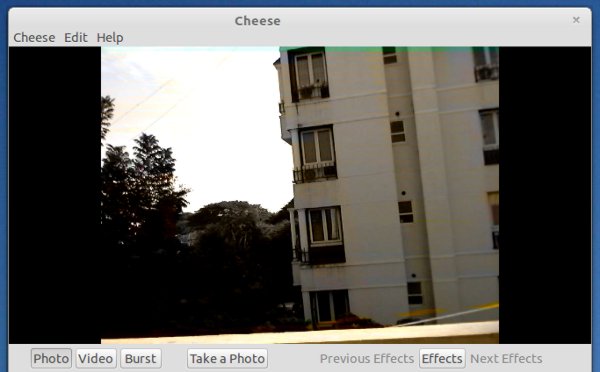
Depending on the devices you use – install the appropriate driver/program. e.g for Webcam, install cheese –
sudo apt-get install cheese
#3. Install your favorite Applications/Softwares
Default applications in Linux Mint are good but it’s not necessary that it will include your most favorite apps. If that’s the case then Open Software Manager or Synaptic Package Manager to search and install your favorite applications or you can install from terminal.
- Google Chrome – for web browsing
- Evolution – as a mail client
- AbiWord – for document processing
- Dropbox – for backup and … so on.
Download Google Chrome and install it using GDebi package installer.
To install Abi Word, execute –
sudo apt-get install abiword
#4. Try some new applications
Are you getting bored with the applications you’ve been using from years, want to try something new, Software Manager is full of great, new and exciting applications. Music players, utilities, programming tools, image editors, games and a lot of new apps are there. Give it a try – most of them are free and it won’t hurt much if it doesn’t work.
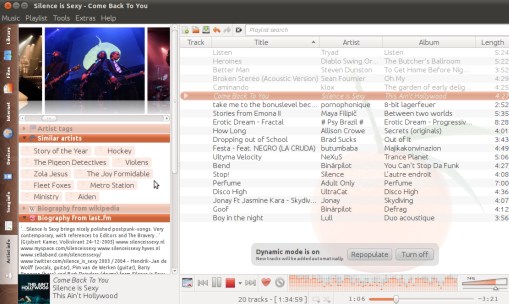
Checkout this old post – 10 Apps you must try on Ubuntu
#5. Explore new features and Customize it as you want!
Linux Mint is a free software, you are free to explore, learn, modify and share. The only limit is your imagination.
Try Cinnamon Settings
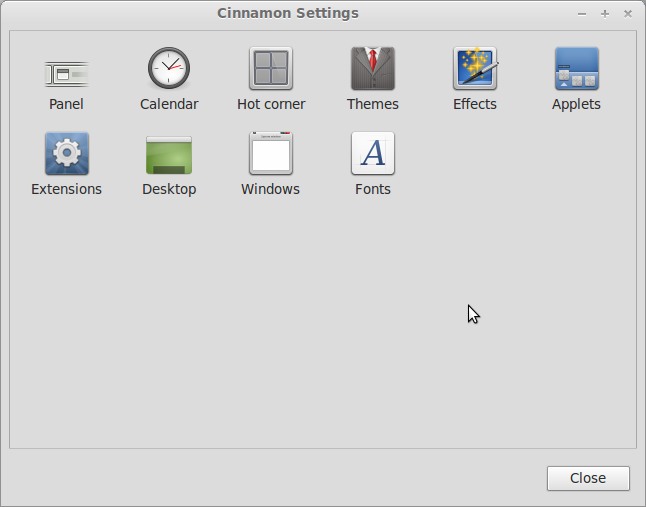
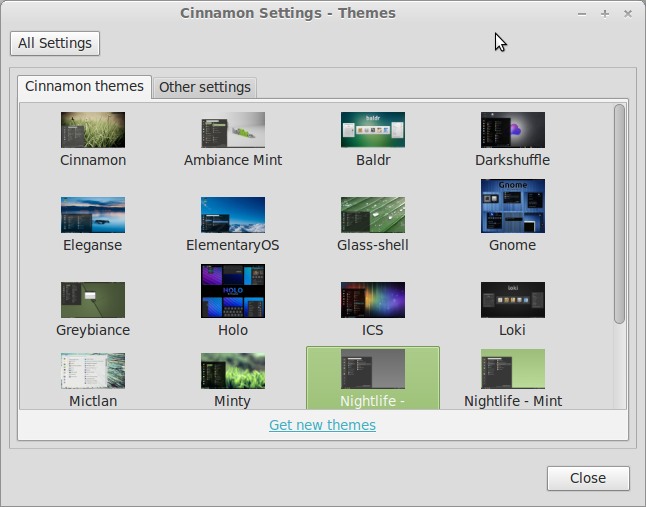
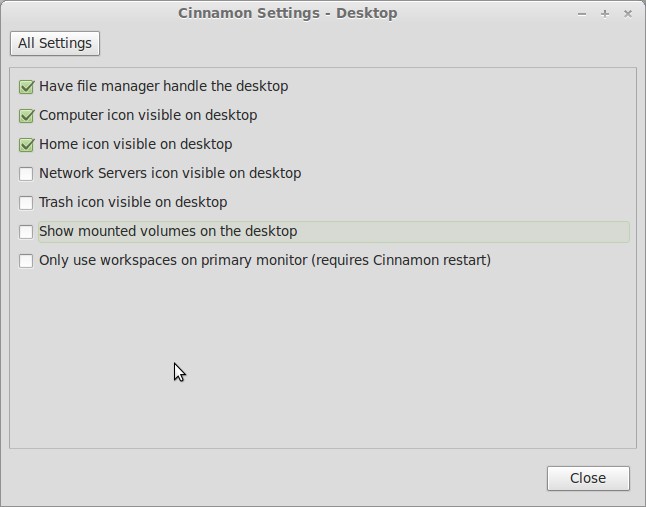
If you’re using the Cinnamon edition then use ‘Cinnamon Settings’ to customize the various settings such as Themes, Fonts, Icons, Applets, Effects, Panel, Desktop etc. It’s a simple utility, installed by default in Linux Mint 13 Maya (Cinnamon Edition). Although, it looks little similar to Gnome Tweak Tool but it’s much simple to use.
Changing/Installing Themes In Cinnamon Settings
Change Desktop Settings using Cinnamon Settings
If you love experiments then you would automatically lot a new stuffs everyday, additionally these posts might help a bit –
Getting Started Tips for Ubuntu (since, Mint 13 is based on Ubuntu 12.04 LTS)
#6. RLE (Relax, Learn and Enjoy)
There are lot of features, lot of apps and a lot of things that you want to tweak but don’t get lost in them, after all, there is some reason, some purpose that brings you to the computer. Linux Mint or any GNU/Linux distribution requires little patience and time – to get things done as you want. So just Relax, Learn and Enjoy, with a lot of fun 🙂
Update 1 : Regarding Cinnamon Settings (check #5 point)
Simply. Just. How I hate those words when everything is different from what is just described, and simply doesn’t work.
OK, what simply to do in order to just install the latest adobe fffflash (when the flash installer has just changed, and the repository seems to be simply lacking an essential component)?
And whenever I just try to start package manager it simply hangs then crashes FF?
And when there seem to be several different varieyties of adobe installer, with no clear distinction except that some don’t actually work?
Some room for improvement, I think, and consideration for the lost newbie.
ok, not a bad article but the drivers section is seriously lacking for a noob like me.
Depending on the devices you use – install the appropriate driver/program. e.g for Webcam, install cheese –
ok we know cheese is for a web cam now, what about updating sound/graphic drivers. how does a new mint user find that out?
Hi Daniel,
To install additional drivers for the devices such as Graphics Card, Sound Card, Printer, just go to “System Setting -> Additional Drivers”. Most of the time, it automatically detects the additional devices and prompt for installing the necessary stuffs. I’ve already explained this in detail – http://blog.sudobits.com/2012/04/14/10-things-to-do-after-installing-ubuntu-12-04/ (Refer to #3 point for that, although it’s for Ubuntu but it also works in Linux Mint)
Thanks for the feedback 🙂
Here are my ideas for things to do after installing Linux Mint Maya (Mate)
1) Install Chameleon Cursors
2) Open Pluma as Root user and Open
/etc/alternatives/xcursor-theme
Save it to xcursor-theme.bak (safety measure)
This is my modification: You can select this and paste it in overwriting everything
[Icon Theme]
Name=Chameleon-Pearl Large 0.5
Comment=Cursor Theme by Giuseppe Benigno
Inherits=Chameleon-Pearl-Large
Example=left_ptr
Then Save As xcursor-theme (you are in the .bak version currently)
Now change you Theme to use the Chameleon-Pearl-Large and the cursor will be the same everywhere.
——————————————————————————-
3) Keyboard Shortcuts:
From the Mint Menu > Preferences > Keyboard Shortcuts
To change a shortcut click the shortcut and New shortcut is prompted
To add a shortcut click the Add button
To Open Home folder I use the
change the shortcut to
shortcut: Windows key+E
To Open filesystem as root:
Create a shortcut to open filesystem as root user
Name: Caja (root)
command : gksu caja /
shortcut: Windows key +N
To Open a Terminal:
Add shortcut:
Name: Terminal
command: mate-terminal
To Open a Terminal as root user:
Add shortcut:
Name: Terminal (root)
command: gksu mate-terminal
shortcut: Windows key+T
——————————————————————————-
Gnome 3 or Gnome Shell, if you have looked or tried them out, have the ability to show all Workspaces and Currently running programs.
I use Compiz and by using
Expo and Scale
I accomplish the same thing.
In the Mint Menu > Preferences > CompizConfig Settings Manager
Choose the following:
Expo:
Expo key; Windows key+X (Windows key in Compiz is called Super)
You also have the option to use the screen as a trigger.
Expo edge: will present you with location(s) to trigger expo.
Scale:
Initiate window picker: Windows key+S (look for keyboard icon)
Initiate window picker: (look for monitor icon)
will present you with location(s) to trigger
——————————————————————————-
Learn some fucking grammar… I couldn’t stand to read more than the first part.
Great comment son. Why don’t you show’em how my little Mattie-Poo constructs sentences like a smart boy! Also, you know that mommy doesn’t like you to use foul language…it’s just plain poopie. You don’t want your father getting the rubber hose on you again, do you!?!
Did you really post two different comments to do this?
Dang mom get off this thread. Must you always follow me around on the internet?!
Great story bro. I’m telling Dad you’re on the computer. You know you’re grounded from the computer a-hole, and I wanna get my game on. So, quit being a douche nozzle, and STFU.
Thanks for the fucking feedback Matthew 🙂
You are very welcome. My sense of humor makes that a very funny comment. I went back and looked at every thing you listed, and it was good. However, Cheese is horrible as hell for me. There are major video issues.
guvcview is another great application for video recording. it’s available there in Ubuntu Software Center.
I tried guvcview for Ubuntu 12.04 and 12.10 on my Asus notebook and it is horrible glitchy. It may just be my specific notebook though.
you had a breain transplant i see
Er yes, it’s spelled brain.
matthew u such a dick aint you…u looking for solution and the people who offer their opnions do help us all..you moaning about grammar..WTF have you done today to help others…u such a waste of space, i guess your mum shld have aborted you or better still maybe your grand mum shld have abt your mum. shut the fuck up if you have nothing to contribute…so say a big thank you to Ramesh Jha. mathew i hope you dont have kids yet and it wld be a nice idea to cut your balls off so you cant reproduce and give us another braindead deepstick…i guess it runs in your genes to be another waste of space…
Okay, wow. This was quite awhile back and it looks like the dust had pretty much settled. However, before you call someone a “braindead deepstick” (I think you mean dipstick) learn how to spell and make your ideas clear enough for someone who is brain dead to understand. Brain dead is actually two words by the way.